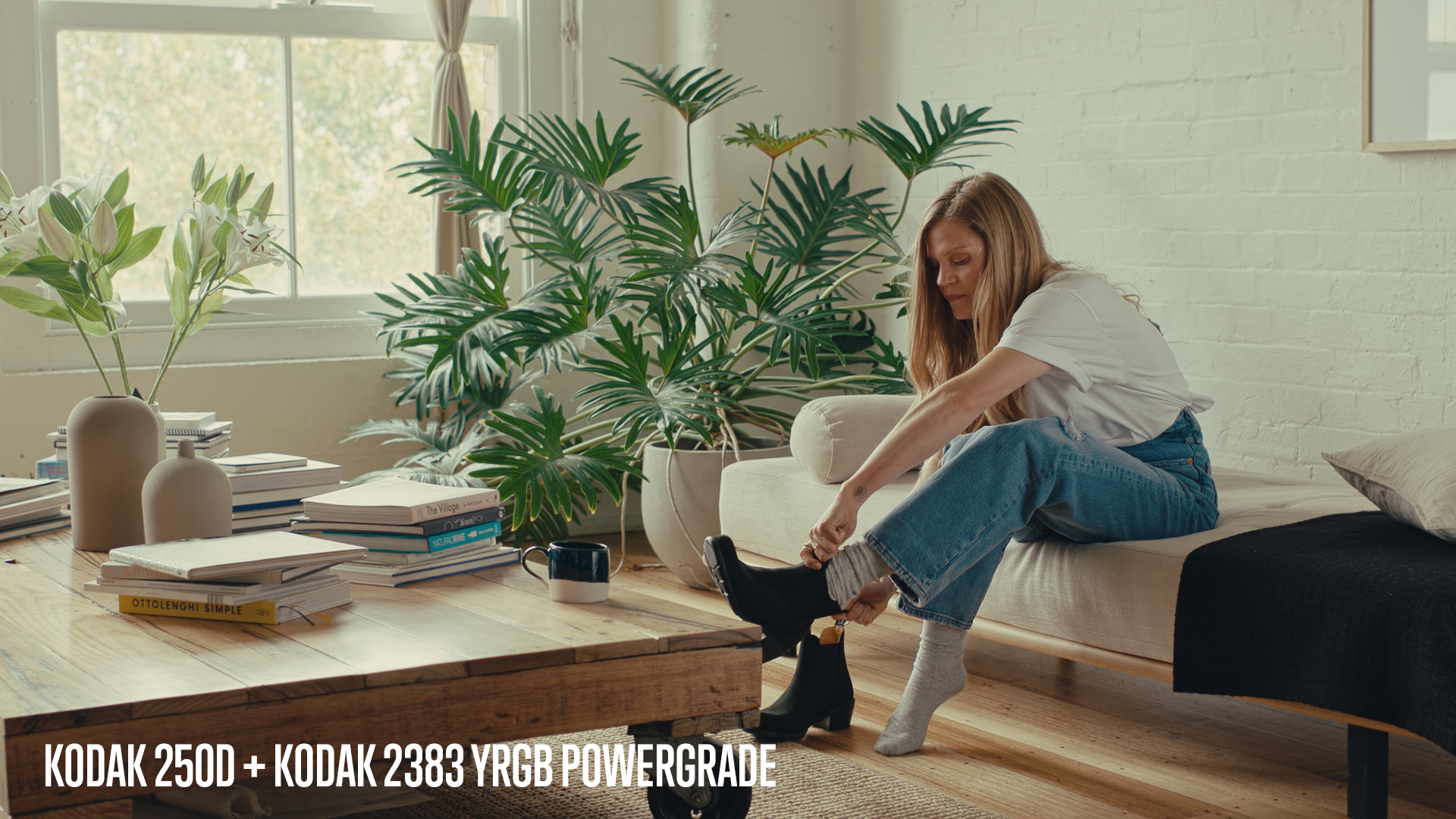
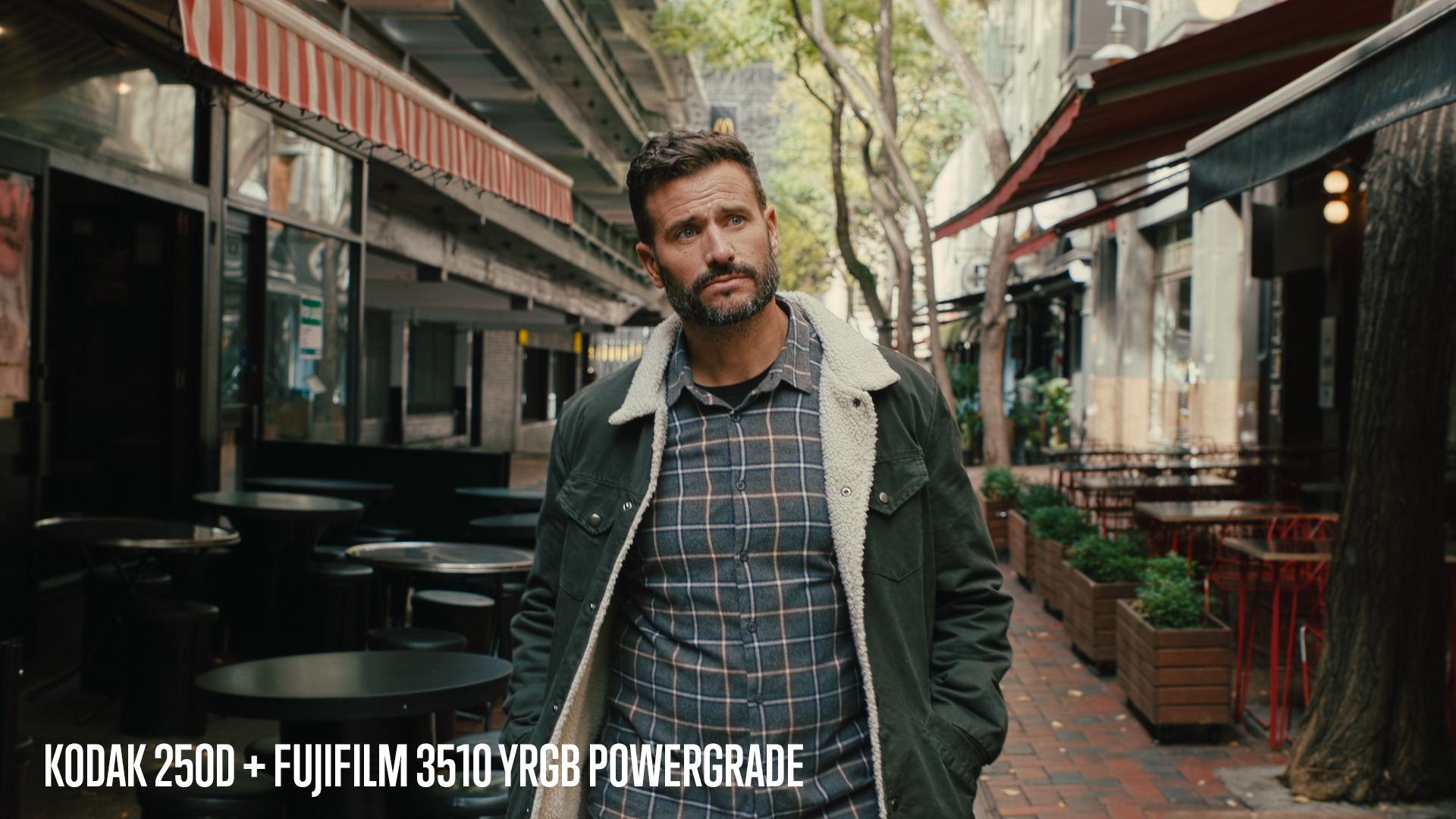
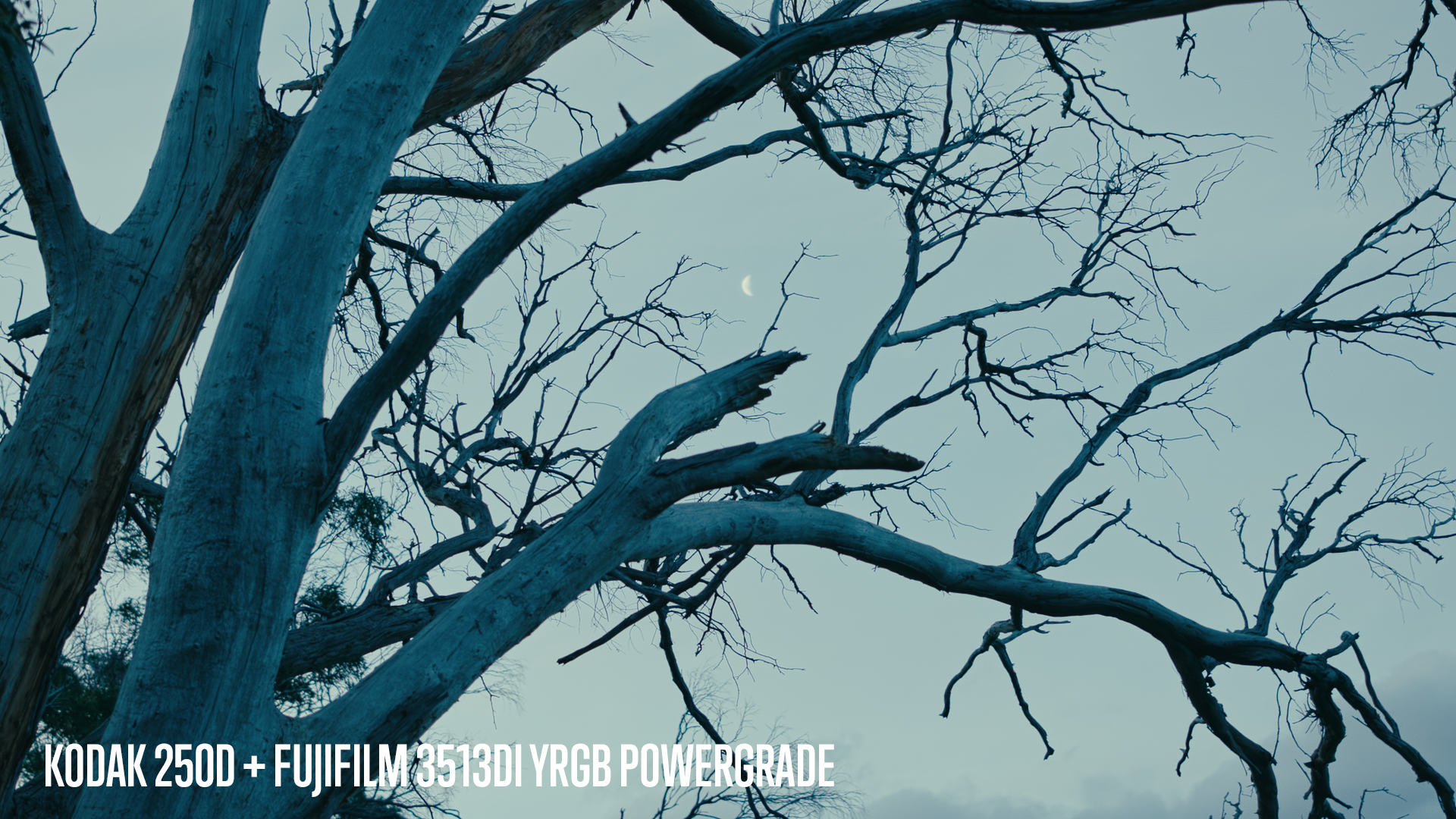
Print film emulation LUTs for download
Kodak 2393 Emulation LUT Test + LUT Download Link from Juan Melara on Vimeo.
What is a LUT?
A look up table (LUT) mathematically translates a set values in your image into another set of values. For example converting a flat log image into video gamma that has correct brightness and contrast, or converting from one colour space into another. Another common use is to preview how your image will look when displayed on a target format or device.
Print film emulation
A film print emulation LUT previews how your image will look like when printed onto a target film stock. It accurately emulates the density and colour response of the film to give you an acurate preview on your grading monitor prior to going to print.
To achieve this accurately your monitor needs to be profiled so that the generated LUT takes into account your monitoring setup plus all the lab variables and the qualities of the final print stock.
This LUT is applied at the monitoring level so that your colour corrections / grading sit below it in the image display pipeline. Prior to going to print you remove the LUT and then output your project. If the LUT is accurate and has done its job, the resulting film print should be close to identical to the preview you’ve been viewing and grading on your monitor.
Print LUTs for aesthetic reasons and why you should use them
Even if your project is not going to print, you might still want to use a print LUT for the aesthetic effects it has on your footage.
Applying a print LUT is the probably the best “film look” treatment I’ve seen and the easiest way to make your digital footage look like film. What print LUTs do to the colours and highlight rolloff in your footage is about as close as I’ve seen to a one click “make awesome” button. Your images will still need work and you will still need to know how to colour correct and grade, but your work can look so much better.
Unlike a lot of products, presets, looks and tutorials I see, a print LUT is actually an accurate and measured emulation of film. And not someone’s interoperation of what they think film looks like. I’m often left wondering if the creators even know what film looks like, cause their presets, tutorials and samples most definitely do not look like it!
Print LUTs are easy to use, there are no variables or sliders to tweak and best of all they’re free!
Print LUTs for Resolve

I’ve had a lot of trouble finding print LUTs online. The LUTs I use, have usually come from a download link that has died years ago and I’ve been converting them from one format to another as I change grading packages.
So I guess you could say there is a real shortage of LUTs online, especially free ones. There are several paid LUTs that I’ve purchased and while they’re ok, I find they’re not as good as the LUTs you are about to get for free…
About a month ago Reduser member Bjorn Benckert from Syndicate Entertainment made available a set of print LUTs. Unfortunately they weren’t in the correct format for Resolve. So I took the time to convert them into a format Resolve reads. You can download these Resolve ready LUTs here:
In the zip you get the following print film stock emulations:
Each LUT comes in three flavours: ConstLclip, ConstLmap and CUSPclip. Each of these treat out of gamut colours in a different way. For an in-depth description of each version, read page 9 of this document.
I mainly use the ConstLclip version of each LUT, but do your own tests. These LUTs use a generic HD profile as the target device they will be displayed on. So even though they don’t take into account your grading monitor since they haven’t been created especially for it, aslong as they’re viewed on a Rec709 calibrated monitor they should look pretty good. Actually they even look good on non calibrated PC monitors!
Installing the LUTs
On a Mac these LUTs need to be placed in Macintosh HD > Library > Application Support > Blackmagic Design > Davinci Resolve > LUT > CineSpace
On a PC place them in C:\ ProgramData \ Blackmagic Design \DaVinci Resolve \ Support \ LUT \ CineSpace
Setting up your footage in Resolve
The only requirement these LUTs have is that the source footage is in log gamma. 
Red footage
For Red footage set the Gamma Curve to REDlog Film in the Resolve Camera Raw settings
BMCC footage
For BMCC footage set the Color Space and Gamma to BMD Film in the Resolve Camera Raw settings
5D and other Canon DSLRs
Shoot your footage in the Technicolor CineStyle profile.
Other cameras
If your camera doesn’t shoot log, or you have existing footage not in log, I have an input LUT that converts video gamma footage into log. If you want this LUT leave a comment or send me an email. I havent worked with it enough to be confident it works well with all footage, so I’m hesitant to release it. But if there’s enough interest I’ll test it thoroughly and put it up for download.
UPDATE: Here is the input LUT to convert video gamma into log. I haven’t had a chance to test it further so feedback welcome. Apply it to the footage by selecting it as the 3D Input Lookup Table. Or on the first node of the grade.
Applying the LUT
Once you’ve setup your footage as described above you’ll need to apply the LUT. Since you want the LUT baked into output footage, you’ll want to select the LUT as the 3D Output Lookup Table, like below: 
Grading with the LUT applied
First thing you may notice after applying the LUT is that the footage looks contrasty and may be lacking saturation. This is normal. The first thing I do is make sure the image is correctly white balanced. Then with the colour wheels in log mode, I usually balance the image by raising the offset and lowering the highlights and increasing saturation. This is usually enough to get the image looking good. Sometimes using the Contrast and Pivot control plus saturation is all you need to do. From there grade as you normally would, but now enjoy film like colours!
UPDATE – real world examples
Interested in seeing what’s possible with these LUTs using real world production footage? Check out my new blog post here. Footage courtesy of Alex Montoya, see his Vimeo page here.


Comparisons
Below are a few samples. These are all grabs from Epic footage shot on the Samyang/Rokinon 85mm. The effects of the LUT should be the same on footage from any camera.
The first image of each scene is REDcolor3 / REDgamma3. I’ve white balanced and added contrast and saturation, basically just a first light – getting it ready for further grading.
For the second image I’ve left the white balance the same, switched to REDlog Film and applied the Kodak 2393 ConstLclip LUT and roughly matched the contrast to the previous image. By equalising the contrast you can get a better idea for what the LUT does to the colours.
The third image is a quick grade with a slight bit of film grain added. I’ve tried to keep the image looking neutral so don’t expect any stylised looks like you see on the rest of this blog!
It can be hard to see the differences between the images. I recommend opening each full size image in a new tab and flicking back and forth, the differences will become much more apparent. Pay particular attention to what the LUT does to the shadows, highlights, saturated colours and skintones.
Scene 1

Scene 2

Scene 3
A few more
When print LUTs may not be appropriate
Adding a print LUT actually degrades your image. You’ll notice it removes a lot of colour contrast and hue variation. And the film effect is actually quite strong. So if you’re after a clean, slick look or your after neutral images it might be easier to achieve without using the LUT.
Beyond print emulation LUTs
A print LUT is a one size fits all emulation that doesn’t take into account the colour response of the camera. A better solution for emulating film is FilmConvert from Rubber Monkey Software.
To quote the site “FilmConvert models the characteristics of the digital sensors, and provides a complex algorithm to transform digital footage to match your favorite film stocks – including negative densities, printer spectral responses and grain response curves.”
It works with Red cameras, Canon DSLRs and the GH2 plus it has a generic profile for use with non profiled cameras.
From testing the demo version it seems to match the film look a lot closer and faster than using the print LUT. Definitely give it a look.
FilmConvert – Digital vs Film comparison from Film Convert on Vimeo.
Problems?
If you’re having any problems working with the LUTs or can’t get them to look good with your footage, leave a comment or drop me an email and I’ll be happy to help you out.


36 Comments
Janis Andrejevs says: January 22, 2013 at 2:47 pm //
Hello,
Great tools
What Camera Raw setting do you think would be suitable for Canon C300 C-LOG? We are shooting a lot of footage with C300 and would love to apply your LUT to it? Thanks
Andrey B. says: January 22, 2013 at 10:29 pm //
Your LUTs and your grades are awesome! They looks so filmic! Where you learned it?
I sended a mail to you about input LUT for “other cameras”. Please?
roger says: January 22, 2013 at 10:38 pm //
Juan, they work for apple color too or just for Davinci?
Juan Melara says: January 23, 2013 at 11:33 pm //
Janis – I’m not too familiar with the C300, but as long as it’s shooting some form of log I think it should work. It may need a bit more work…
Andrey – I’ve updated the article with a link to the video to log input LUT.
Roger – I don’t think these LUTs will work with Apple Color. It may be possible to convert them though. I’ll look into it for you…
Andrey B. says: January 24, 2013 at 12:00 pm //
Thanks a lot Sir! Got it.
By the way your new link have a mistake in first part of it.
Vadim Melnicuk says: January 29, 2013 at 12:36 pm //
Thanks a lot for posting this awesome tool!
Fernando says: January 30, 2013 at 7:03 pm //
Hello, this is very inspiring for me. Thank you thank you thank you. I am on resolve now trying to use the luts.
I am also very attracted to your images on the “real world exemple” shots. I would love to learn to grade like that. How do I acchive that looks? Blue tone to the intire image but the skin tones are beatiful and correct? wow please please teach me hoe to do that.
Respect my friend and thank you for your teachings.
Fernando
Ryan says: January 30, 2013 at 7:06 pm //
Fantastic work, Juan!
Do you know of a similar film print LUT that works as a plugin directly in FCP or AE? I’d love to get this to fit into the post pipeline for a show I shoot!
Thanks for sharing.
Juan Melara says: January 31, 2013 at 2:59 am //
Fernando – Stay tuned for the tutorials I’m working on. I’ll show you exactly how to get the look.
Ryan – Try the original .3dl versions of these LUTs which can be found here: http://www.syndicate.se/Files/~usr/lut/conversion.zip I know they work with AE via the apply LUT filter, since thats how I converted them!
Ryan says: January 31, 2013 at 4:29 am //
Brilliant.
Thank Juan.
chaitanya says: February 4, 2013 at 8:14 pm //
Hi Juan Melara,
First of all i wud like to thank u for the luts.
im currently work as a davinci resolve junior colorist, using arri Rec 709 lut on Red footage.
In the above screenshots you have applied LC3DL_Kodak2383_log2hd_ConstLclip.cube. Is it just for fuji & Kodak ?
And i ‘m bit confused with 15luts usage.. is there any specific reason for all of those and does it varies for film and digital?
Cud please let me know which lut shud i use for digital projection
Regards
Chaitanya
Marc Dunham says: February 8, 2013 at 5:49 am //
Been wanting to use this LUT on my PC however I don’t have the directory \Support \ LUT \ CineSpace in my blackmagic folder for some reason. Why would this be?
Andrey B. says: February 10, 2013 at 10:05 pm //
Marc Dunham, try to find it in the “Program DATA” folder.
Julien Chichignoud says: February 11, 2013 at 9:07 pm //
I recently graded a music video using these LUTs. It is truly amazing!
http://www.youtube.com/watch?v=p_iocf9Nk5M
Not only does it give the footage a great look instantaneously, but it then also makes the whole grading experience very different. When playing with contrast/exposure, there is a great natural feel to it, and because the LUT is applied at the output, it always keeps that wonderful rolloff in the highlights, whatever you do to do the footage.
This video was graded pretty close to the original look of the LUT (can’t remember which one I used, sorry), just pushing the saturation a bit, and then a few secondary corrections to make some colours pop a bit more. I’m very happy to have achieved this look with the short time I had to grade this video, and it’s really all thanks to these magical LUTs.
Thanks you!
Juan Melara says: February 12, 2013 at 4:24 am //
Awesome work mate. I like how you’ve got a real depth and richness to the tones without it being over saturated. I think I’ve watched it 5 times straight now!
Cristian says: March 7, 2013 at 7:41 pm //
I’ve tested them on both Red and Canon . The LUTs on Red worked very well, on Canon they looked like sh*t. Yellowish crap skin tones, very flat… almost impossibile to recover. Like you said, it is very easy to color grade some good material, specially the footage from RED. DSLRs are a big challenge, only the “professionals” could grade them. I liked the look of films, specially your look, but some skin tones may look like they were sunburned… white people turn almost black
Anyway, Filmsconvert works better for Canon.
Francisco says: March 30, 2013 at 4:10 pm //
Does it works on Premiere C.S. 6 or LUT Buddy ?
P.S. Really nice work
Sebastian Th. says: April 4, 2013 at 1:52 pm //
hej.
did you try you LUT’s on the Arri Alexa Loc ProRes444 or with DPX’s from the RAW files?
it would be very kind!
I’m a student from Austria, and going to shoot a short on the Alexa and I would like to use your LUT’s.
could you help me? I could send you test footage in all kinds of formats and variations from the ARRI Alexa.
please help me to adjust your LUT’s to the Alexa Colorspace
its my master projekt film.
thx
best regards sebastian
mohan says: April 8, 2013 at 3:58 pm //
@Cristian. You have to shoot in cinestyle with 5D, 7D, 550D anything. You will surely get great images as shown above. Any camera which shoots almost log style picture will be capable to getting film look while applying the above given luts. And by the way these luts were part of Autodesk Lustre package. I found those 2 years back and using from then for all my film grades. And yes you have grade a bit after applying these, but be careful these luts have very low color gamut to begin to play with. But for starters these are all great.
david says: May 9, 2013 at 5:08 pm //
There’s no “\ Support \ LUT \ CineSpace” path in my Win7. Nor is there any “ProgramData” as someone else mentioned. Please advise, I can’t wait to give these a try. Thanks?
Mike says: May 11, 2013 at 12:49 am //
Hi Juan!
Where else I can find print luts, other than those provided by Bjorn?
Free or paid…
I would also be interested in “special” LUTs as well (bleach-bypass, INR etc) which I know exist…
Thanks!! Any help would be greatly appreciated!
Ryan says: May 14, 2013 at 9:26 pm //
Hey Juan,
I finally got around to trying them in FCP7 with LUT Buddy. Once I load the LUT in, the canvas goes all black, when trying any of the .3dl LUTs. LUT Buddy successfully showed me an image when loading in a .mga LUT from TassinFlat.
Are the .3dl’s compatible with FCP7 or am I making an error somewhere?
Thanks.
Drew Ruggles says: May 24, 2013 at 10:17 pm //
First I would just like to thank you on the amazing stuff you’ve been putting out…wow. I’d just like to echo what everyone else has been saying, I tried it on some Clog footage…not good haha. Would really love to see these for some other camera formats. Sell them as camera specific packs, and I’ll be the first inline for you to take my money haha thanks again!
Alex Molina says: May 26, 2013 at 8:08 pm //
HOLA JUAN
RARELY do we take the time to leave a detailed comment on blog-posts other than a general/overall THANK YOU, but just had to share this with you, Hermano:
we recently shot a pre-production “teaser” trailer for our upcoming feature TUCHT on the new SONY NEX CAM using it’s native video-gamma (for various excellent reasons suggested by our awesome DP) but THEN realized in post we should’ve shot it “flat” in log-gamma;
we spent ’bout a week “googling” for resources to convert our footage to log with no success, so finally decided to compromise our color-grading vision a considerable bit;
well, Bro, you can imagine our THRILL when we stumbled on your blog (while “googling” for LUT resources this time) not only finding your AWESOME filmic LUT’s but ALSO your “video2log” LUT!!!
THANK YOU, THANK YOU THANK YOU
now, do to your tireless & selfless work & in freely providing your resources/tutelage, we can confidently return to our original color-grading vision without compromise
we’d LOVE to share our before/after with you & your exceptional blog & passionate readers/contributors…
Peace, Love, & Success
ALEX
Alex Molina says: May 26, 2013 at 10:32 pm //
UPDATE: in all our excitement, Juan, we forgot to let you know that we can CONFIRM your “video2log” LUT indeed works PERFECT on our SONY NEX CAM raw .mts footage
carat-tools.com says: May 27, 2013 at 5:07 am //
I drop a comment each time I like a post on a site or I have something to contribute to the discussion.
I do have a couple of questions for you if it’s allright.
And, if you are writing at other online social sites,
It’s caused by the fire communicated in the post I looked at. And after this post Film print emulation LUTs for downloadJuanMelara.com.au. I was actually excited enough to leave a thought
Could it be simply me or does it look like a few of these
remarks appear like they are coming from brain dead people?
I would like to follow you. Could you make a list the complete urls of your social
pages like your linkedin profile, Facebook page or twitter feed?
Brenna says: May 29, 2013 at 2:22 am //
Hi, I believe your website could be having browser compatibility problems.
Whenever I look at your site in Safari, it looks fine however, when opening in
Internet Explorer, it’s got some overlapping issues.
I just wanted to provide you with a quick heads up! Apart from that, fantastic site!
Manuel Huertas Marchena says: June 6, 2013 at 3:40 am //
Hello Juan,
Thanks a lot for the useful information and for sharing those luts with us! your footage looks amazing!
I am actually wondering if you know if can load this LUTs into nuke? I am actually working on a full cg personal project and trying to achieve photorealism as much as I can. After lurking around, I thought that adding a lut might help to push me into the right direction. But Again I am working in nuke, I am not sure if you are familiar with it..
I am working on linear (3d renders) 32 float .exr files so I guess that is equivalent to log files, being linear as well?
In any case, let me know if you have some thoughts on this, I am really wanting to see what difference it makes!
thanks again
-Manuel
Manuel Huertas Marchena says: June 6, 2013 at 3:45 am //
Hi Juan,
thanks a lot for the great information. Your work looks stellar btw!
I am doing a personal project using full CG (3d) instead of footage, but trying to aim for photorealism. I think
one of the steps in a good direction will be to use a film lut to get closer to a film look.
My source being completely 3D is being rendered in 32 float .exr’s, which I guess are interpreted the same as Log, being .exr linear as well? Although I might be wrong here…
I do use nuke, and I was wondering if you think that your LUT’s are also compatible with this package!
Any thoughts you might have on this will be useful.
Thanks again
-Manuel
Mitchell Ayers says: June 14, 2013 at 5:05 am //
hey im trying to run these luts.
though in my application support on my mac. i have no davinci folder?
though i am running full davinci resolve.
great tutorials juan. thanks a ton
Juan Melara says: June 14, 2013 at 5:19 am //
The latest version of Resolve should have a button in the LUTs tab that takes you directly to the LUT folder. Saves digging around too much.
Mitchell Ayers says: June 14, 2013 at 5:24 am //
scrap that…found it ..
thanks again Juan
Orash says: June 20, 2013 at 10:24 am //
Hey juan!
How’s it going?
Fisrt of all i want to say thanks for the hard work you are doing, it’s great and i am learning heaps thanks to you!
I have a noob question about this luts if you don’t mind, maybe you can help me out with this.
Are this luts clipping the gammut down to a rec709 gammut or do they keep all the color information that the camera has?
Another question is, lets say i want to grade a film with a p3 output lut so i will be able to deliver xyz fils for dcp, can i still use this luts for an aesthethic reason?
I was thinking instead to burn the lut right in the clip to add it to a second serial node, do all my grade and have another node right at the end rgb to xyz or whatever i have to use to get a p3 lut in davinci.
Would you suggest a workflow likethis one?
Or maybe i should burn it in as an input lut and having the p3 lut as output?
Lots os questions i know, i am quite confuse about the lut world
I really appreciate your help!
Cheers,
Orash
Trackbacks for this post
[...] should definitely check out Juan’s site for a much more detailed explanation and step by step guide of how to apply LUTS in DaVinci [...]
[...] film print emulation LUTs. Download them here and read this post for instructions on how to install and use them. If you are grading your own footage not in log [...]
[...] film print emulation LUTs. Download them here and read this post for instructions on how to install and use them. If you are grading your own footage not in log [...]